
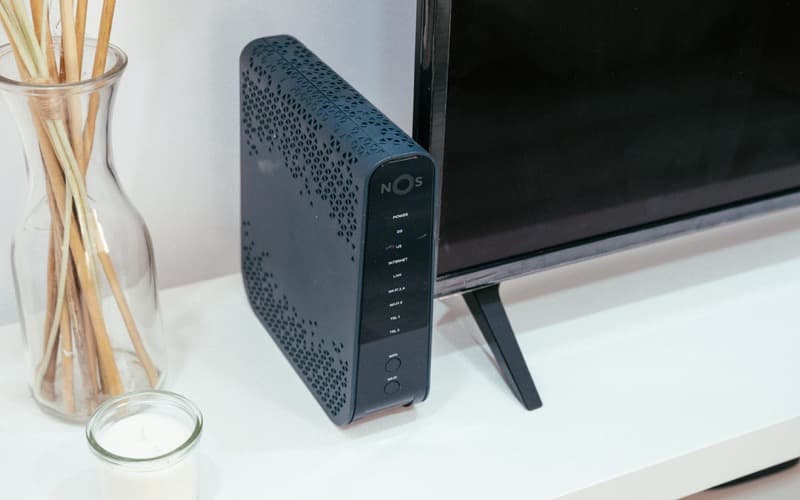
The short answer: before you buy anything, move your router to a central position, off the floor, away from thick walls and away from other electronics. This fixes most slow Wi-Fi problems at zero cost. If that does not help, a Wi-Fi 6 router upgrade will cover most homes. A mesh system is worth considering for large or multi-floor properties.
Check that the problem is Wi-Fi, not your broadband
Slow Wi-Fi and slow broadband feel the same but have different causes. Before adjusting your Wi-Fi setup, plug a laptop directly into your router with an ethernet cable and run a speed test. If the wired speed matches what you are paying for, the problem is Wi-Fi. If the wired speed is also slow, the issue is your broadband connection itself. Check our guide on what broadband speed you need and consider switching provider.
Router placement: the single most effective fix
Router placement has a bigger impact on Wi-Fi quality than almost any other factor. The ideal position:
- Central in your home: not tucked in a corner, cupboard or at one end of the house. Wi-Fi signal radiates outwards in all directions, so a central position covers more of the property.
- Elevated: on a shelf or desk, not on the floor. Radio waves spread outwards and downwards from the router; being off the floor improves coverage on the same level and the floor above.
- Away from thick walls: solid concrete, brick and stone walls absorb Wi-Fi signal significantly. Plasterboard walls have much less effect. If your router is on one side of a solid exterior wall and you mostly use devices on the other side, that wall is your problem.
- Away from interference sources: microwave ovens, cordless phones, baby monitors and even some LED lights can interfere with Wi-Fi (particularly the 2.4 GHz band). Keep the router away from these where possible.
Use the 5 GHz band for nearby devices
Modern routers broadcast on two frequency bands: 2.4 GHz and 5 GHz. They have different characteristics:
- 2.4 GHz: longer range, better at penetrating walls, but slower and more congested (shared with other devices in the neighbourhood).
- 5 GHz: shorter range, blocked more easily by walls, but faster and less congested. Better for devices that are in the same room as the router or nearby.
If your router has a single network name (SSID) for both bands, devices choose automatically. Most modern devices choose well, but if you are experiencing slow speeds on a device close to the router, check whether it has connected to 2.4 GHz when 5 GHz is available.
Check for Wi-Fi congestion
In a block of flats or a terrace, your neighbours' Wi-Fi networks can interfere with yours on the 2.4 GHz band. Channels 1, 6 and 11 are the non-overlapping channels. Try setting your router to a specific channel rather than "auto" to avoid the busiest one. Many routers have a "scan" function in their settings that shows which channels neighbours are using.
The 5 GHz band is much less congested because there are more channels and fewer legacy devices competing for them. Prioritising 5 GHz for your devices helps significantly in dense areas.
Use ethernet where it matters
The most reliable connection is a wired one. Connecting your main TV, games console, desktop or NAS directly to the router via ethernet removes Wi-Fi from the equation for those devices. This frees up Wi-Fi capacity for phones and laptops.
If running an ethernet cable is not practical, a powerline adapter pair (around £30–50) uses your home's electrical wiring to carry the network connection to another room. Performance varies depending on wiring quality but is generally much more stable than Wi-Fi across walls.
When to upgrade your router
ISP-supplied routers are typically adequate but rarely excellent. If your router is more than 5 years old, or if you have many devices and a fast connection, upgrading can make a noticeable difference.
Wi-Fi 6 (802.11ax) routers handle many simultaneous connections more efficiently than older Wi-Fi 5 (802.11ac) routers. If your household has 15+ connected devices, a Wi-Fi 6 router is worth considering. Wi-Fi 6E adds the 6 GHz band for even less congestion, but coverage range is shorter.
A single good Wi-Fi 6 router covers most homes up to around 150–200 square metres (1,600–2,150 sq ft). For larger properties or homes with thick stone walls, a mesh system is the better solution.
Mesh Wi-Fi systems
A mesh system uses multiple units placed around your home that work together as a single network. Devices hand off seamlessly between units as you move around, and the backhaul connection between units is usually on a dedicated channel or a wired connection.
Mesh is worth considering if:
- Your property is large (over 150 sq metres) or spread across multiple floors.
- You have thick stone, brick or concrete walls that significantly reduce signal.
- You experience dead spots in specific rooms that a better-positioned single router would not fix.
Good mesh systems are available from TP-Link (Deco range), Google (Nest Wi-Fi), ASUS (ZenWiFi) and Eero. A two-unit mesh system typically covers 200–250 sq metres. Prices start from around £100 for a two-pack.
What you do not need
You do not need a Wi-Fi extender / repeater in most cases. Extenders amplify an existing signal but also amplify interference and noise, and create a separate network that devices do not always hand off to smoothly. A better-positioned router or a mesh system solves the problem more effectively.
You do not need Wi-Fi 7 yet. Wi-Fi 7 (802.11be) is available in 2026 but device support is limited and the real-world benefits over Wi-Fi 6 are marginal for most households. Wi-Fi 6 is the sensible upgrade target.
You probably do not need a mesh system if your home is under 120 square metres with standard plasterboard internal walls. A single well-placed Wi-Fi 6 router will cover this.
Frequently asked questions
My Wi-Fi is fine in one room but drops out in another. What should I do?
First, try the router placement tips above. Move it closer to the centre of your home. If a specific room is the problem, check what is between the router and that room: solid brick, concrete or a chimney breast will all block signal. An ethernet connection to that room (or a powerline adapter) is often more reliable than trying to push the Wi-Fi signal through structural walls.
Should I restart my router regularly?
Routers can benefit from an occasional restart to clear cached connections and refresh their state. If your connection seems to degrade over time and restarting helps, it may indicate a firmware issue. Check whether your router's firmware is up to date.
Does my Wi-Fi password affect performance?
Your password determines the security protocol (WPA2 or WPA3). WPA3 is the newer, more secure standard and is marginally faster. If your router supports WPA3, enabling it is worth doing, though the speed difference is minimal in practice.
Can too many devices slow my Wi-Fi?
Yes, but mainly in two ways: older routers handle many simultaneous connections poorly (Wi-Fi 6 addresses this directly), and the total bandwidth is shared across all active devices. Idle devices (plugged in but not transferring data) have almost no impact.